What does SOS means on iphone and how to use it?
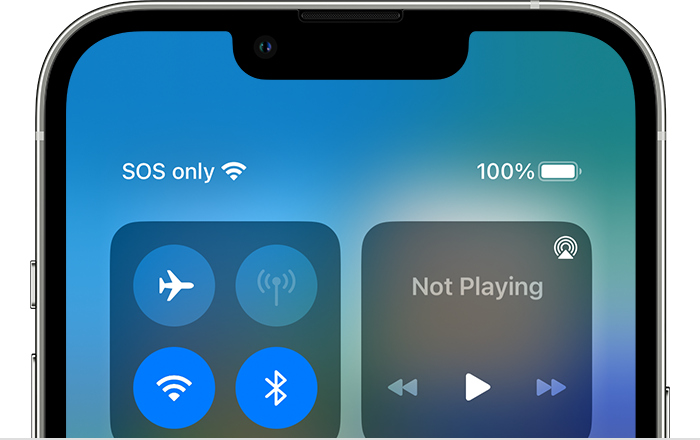
The SOS icon on your iPhone can mean two things: either you are in SOS mode, or you have poor cellular reception.
SOS Mode
SOS mode is a feature on your iPhone that allows you to quickly and easily call for help in an emergency. When you activate SOS mode, your iPhone will automatically call the local emergency number and send your location to emergency services. You can also choose to send a text message to your emergency contacts.
To activate SOS mode, press and hold the side button and either volume button for five seconds. A countdown will appear, and then your iPhone will call emergency services.
Advertisement
Poor Cellular Reception
If you see the SOS icon in your status bar, but you are not in SOS mode, it means that you have poor cellular reception. This could be because you are in an area with poor cell coverage, or it could be because your iPhone's cellular settings are not correct.
To fix the SOS icon in your status bar, you can try the following:
- Restart your iPhone.
- Check your cellular settings to make sure that they are correct.
- Move to an area with better cell coverage.
If you are still having problems with the SOS icon, you can contact Apple Support for help.
Advertisement
What Does SOS Stand For?
The SOS signal is a Morse code distress signal that is used to call for help. It consists of three short beeps, three long beeps, and three short beeps.
The SOS signal was first used in 1905 by the German shipping company Norddeutscher Lloyd. It quickly became the standard distress signal for maritime communication, and it is still used today by ships, aircraft, and other emergency services.
How to Use SOS on iPhone
To use SOS on your iPhone, follow these steps:
- Press and hold the side button and either volume button for five seconds.
- A countdown will appear, and then your iPhone will call emergency services.
- You can choose to send a text message to your emergency contacts.
- If you are unable to speak, you can shake your iPhone three times to send an SOS message.
Advertisement
How to Turn Off SOS on iPhone
To turn off SOS on your iPhone, follow these steps:
- Open the Settings app.
- Tap on Emergency SOS.
- Toggle off the Call with Side Button feature.
Conclusion
The SOS icon on your iPhone can be a valuable safety feature. If you are ever in an emergency, you can quickly and easily call for help by activating SOS mode. However, if you see the SOS icon in your status bar when you are not in an emergency, it is likely that you have poor cellular reception. You can try the troubleshooting steps above to fix the SOS icon.
I hope this article has been helpful. Please let me know if you have any other questions.